Mobile checkout
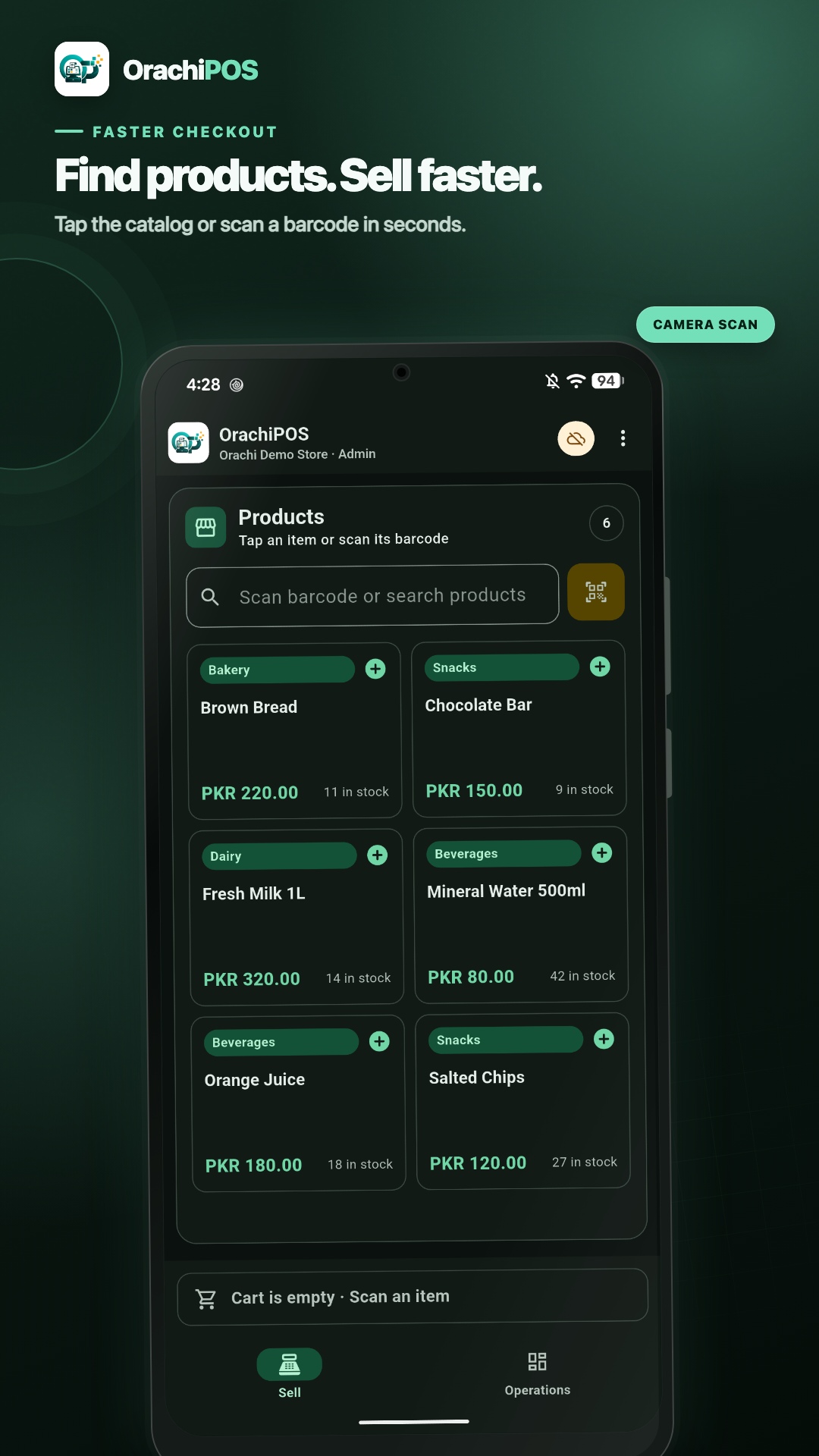
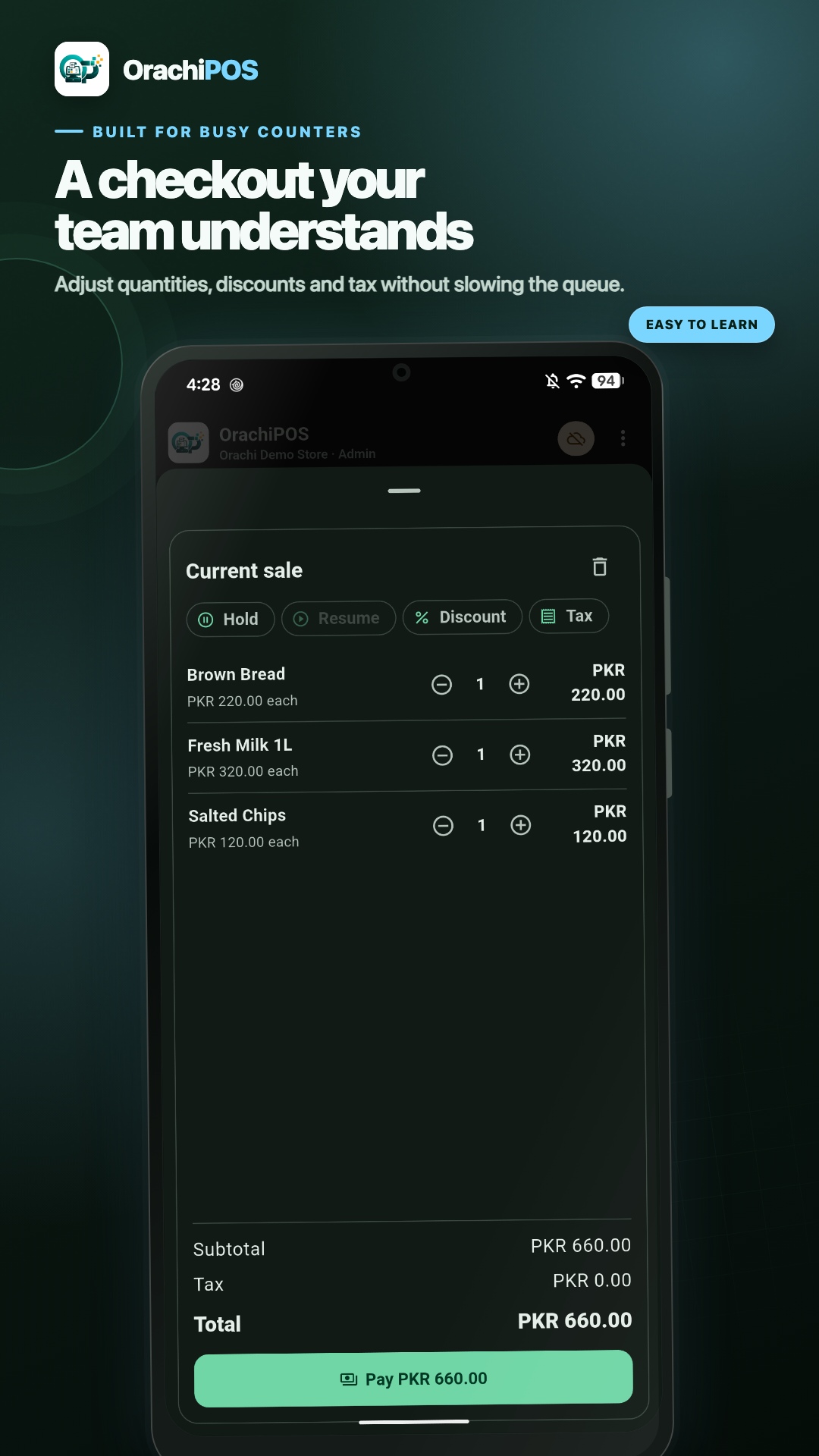
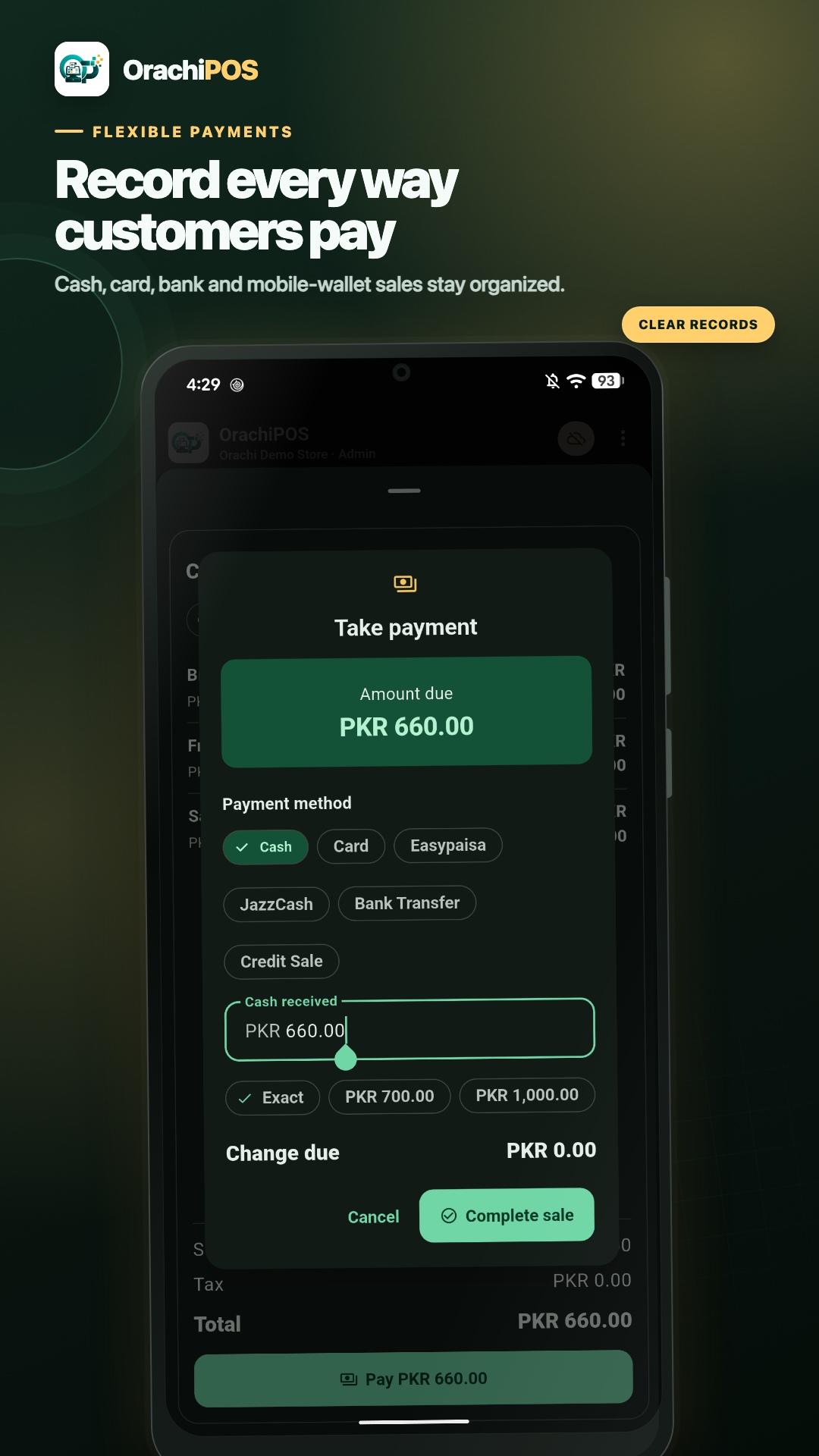
Search products, scan barcodes, manage the cart, apply approved discounts, and record payment methods.
Keep your store moving from an Android phone with fast checkout, camera barcode scanning, shift control, inventory tools, and secure synchronization with OrachiPOS.
Use a phone as an additional counter, serve customers away from the register, or continue essential store work when the counter PC is unavailable. Approved activity is stored locally and synchronized when connectivity returns.
Purpose-built screens keep daily retail work fast, understandable, and dependable.
Search products, scan barcodes, manage the cart, apply approved discounts, and record payment methods.
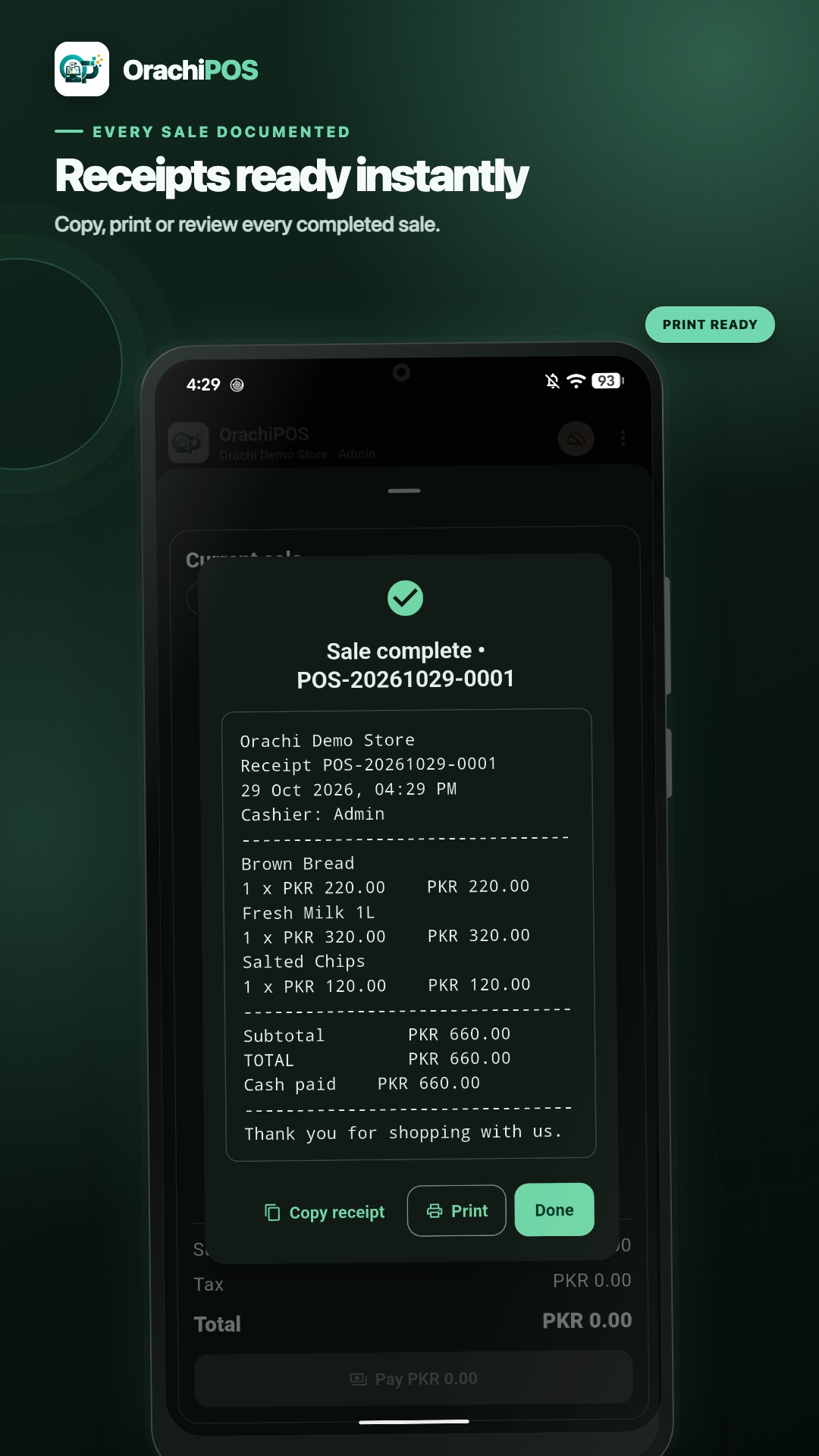
Generate digital receipts and print through a configured network receipt printer.
Review stock, make authorized adjustments, and keep product quantities current.
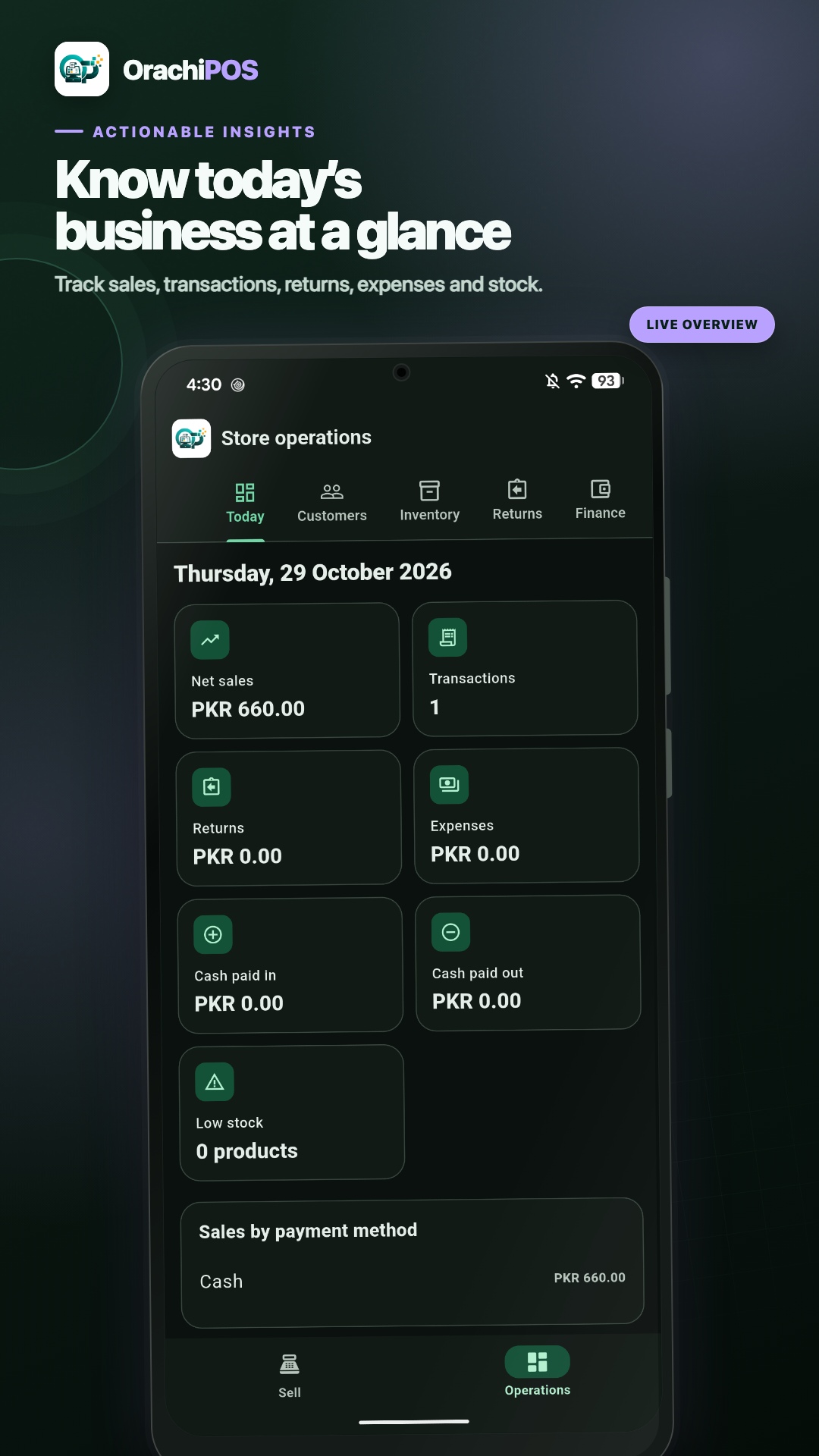
See sales, payment totals, recent activity, and the numbers that matter during a shift.
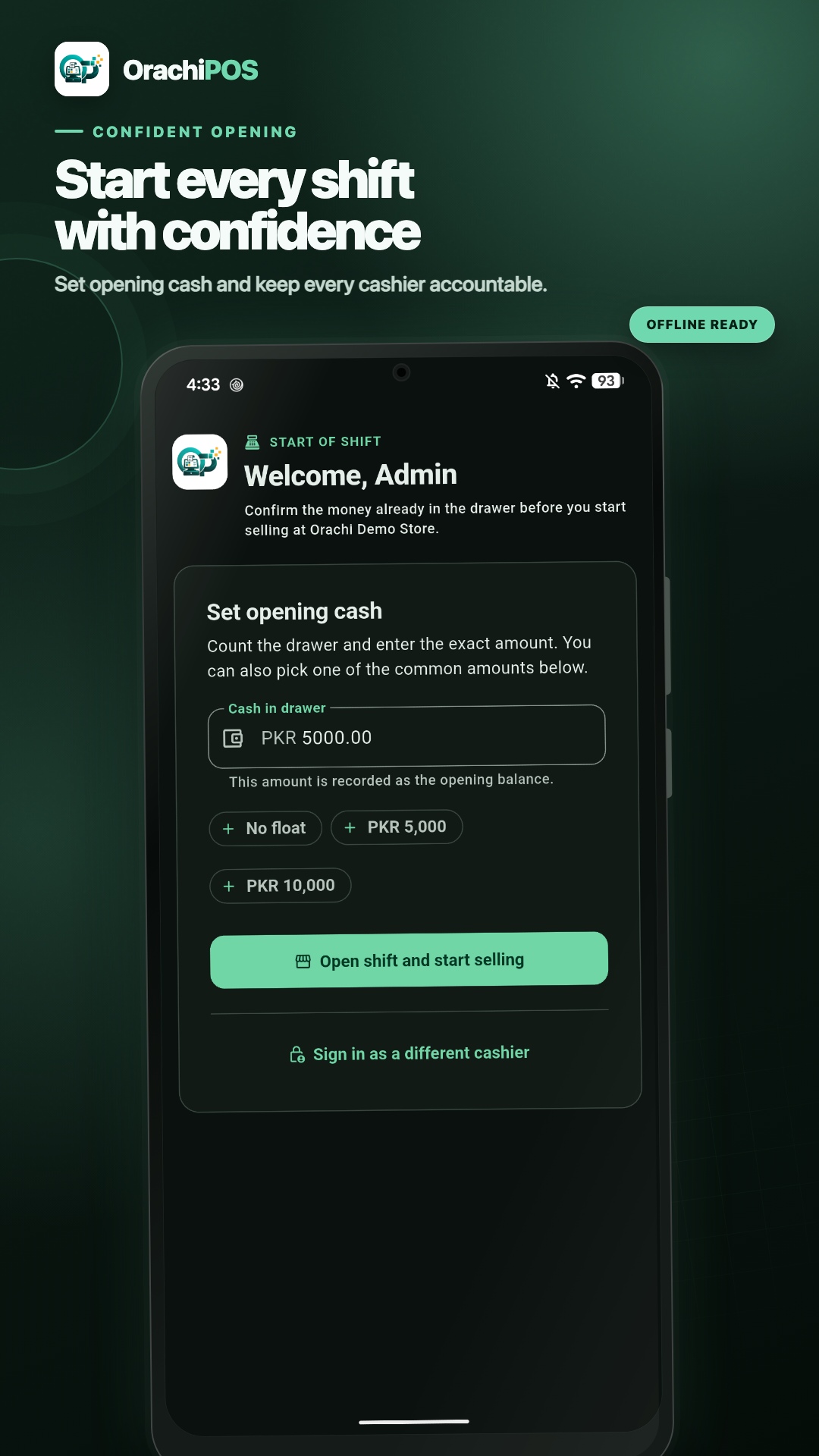
Handle permitted returns, cash movements, supplier payments, and operating expenses.
Queue approved changes offline, synchronize safely, and review connection or conflict status.
Real OrachiPOS Mobile screens, designed around the way cashiers and store managers actually work.
OrachiPOS Mobile is linked to an approved store account. Your administrator controls device access and cashier permissions.
Contact our team for availability, account requirements, and mobile activation.
Request mobile access